Order contents and label printing, made way easier · Photo download time down 90% · Image processing down 95%
Two internal programs I built for an online business that sells personalized jewelry on Amazon, Etsy and Shopify. The Print Assistant prints every order's shipping label and contents sheet from seven storefronts in one run, and downloads each customer's photo into a Desktop folder named with today's date. The AP Photo Generator turns customer pet photos into engraving-ready line art, up to a hundred at a time.
Before Print Assistant v1.4
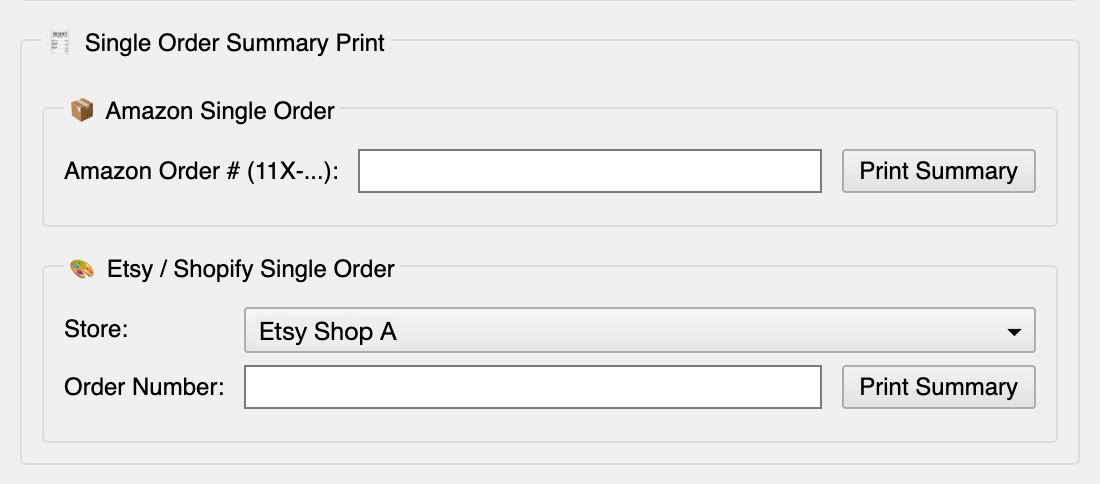
The printing program the team used before my upgrade. It worked, but every step was manual and it gave no sense of progress.
After Print Assistant v2.10
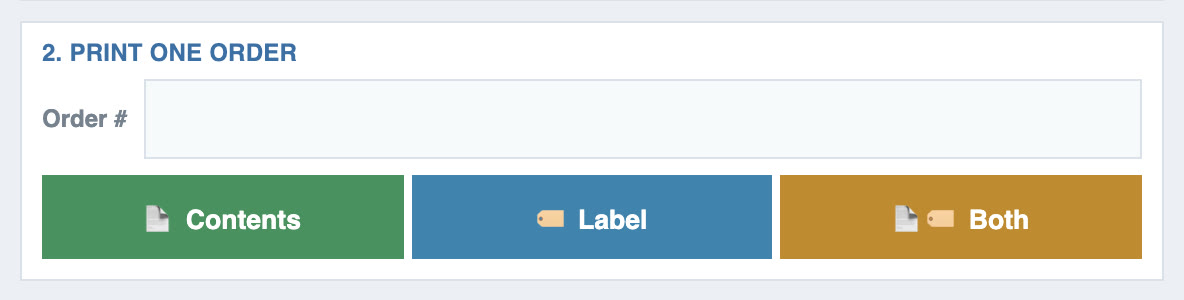
My rebuild of the same program. Same job, same services, redesigned around three numbered steps and made safe to run with one click.
Before · v1.4Grey stacked forms, a store dropdown, and a text log as the only feedback.After · v2.10Store buttons, one order field, and a live progress bar. Shown mid-batch: 12 of 31 printed.
Program 02 · AP Photo Generator v1.30The main screen as it opens, before any photos are added. The empty states in this one shot are reconstructed; every other screenshot on this page is a real capture.
Security note: every image on this page is masked. Customer photos are blurred, order numbers are replaced with zeros, and API keys, account details and Drive folder links are removed.
Why I Built This
Fulfillment was slow in the gaps between steps
A personalized order passes through the same steps: buy a shipping label, print what goes in the box, find the customer's photo, turn that photo into something a laser can engrave. None of those tasks is hard. What made the day slow was that they lived in different places and had to be done in order, by someone who remembered the order. After printing, someone had to open every photo order and download the customer's photo by hand, then edit those photos one at a time. People waited on downloads, and checked in to ask whether a batch was still running. Every new hire had to learn the whole sequence before they could fill a single order.
When I opened the existing printing program, I found two problems nobody could see from the screen. It never checked whether an order already had a label, and it did not compare shipping options against the delivery speed the customer paid for. I built this system so the sequence lives in the software instead of in someone's head: press one button, and the right label and contents sheet print while the customer's photos download into today's folder, ready for the photo generator. A new hire can now run a batch without learning the old sequence first.
90%
cut in download time once photo retrieval was automated and printing was consolidated
95%
cut in image editing time after the pipeline moved to parallel batch processing
Type
Internal tools
Role
Developer, Experience Designer, Implementation
Built with
Python · OpenAI Image API · Claude Code · ChatGPT
At a glance
What changed for the people using it
The old printing program next to my rebuild, one row per task. The sections below show each change on screen.
What
Before · v1.4
After · v2.10
Choosing a shop
BeforeAmazon button, plus a dropdown for the other six shops
AfterSeven equal shop buttons with hover and selected states; the batch button renames itself to the chosen shop
Reprinting one order
BeforeContents sheet only; a label meant logging in to the shipping system, downloading it and printing it separately
AfterOne order field for any store, with Contents, Label or Both, printed straight away; a reprinted label is never charged twice
Seeing progress
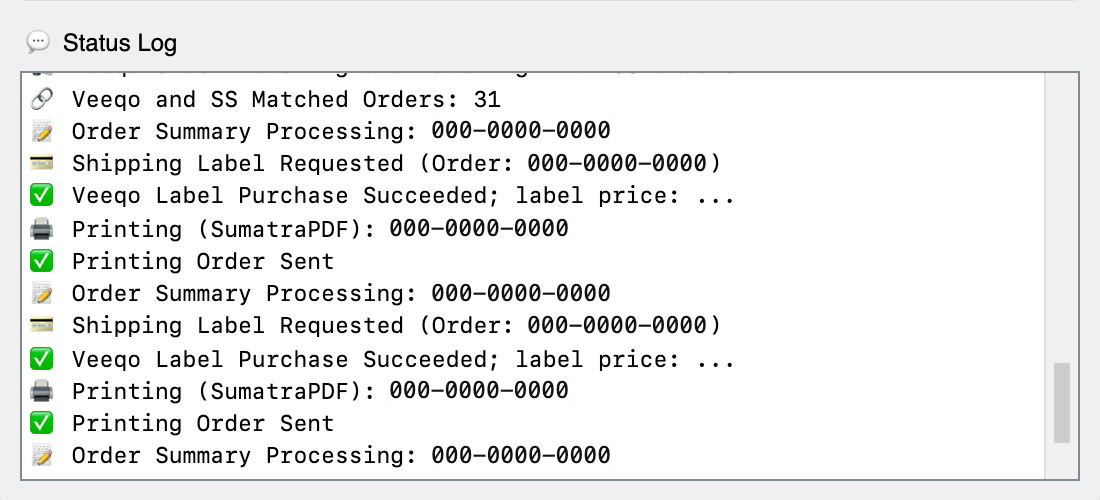
BeforeA scrolling text log
AfterA progress bar with count, elapsed time, time left and a finish time
Choosing shipping
BeforeFiltered by protection and price, but ignored the delivery speed the customer paid for; skipped the order if nothing fit
AfterRequested carrier, then requested service, then any option meeting the promised date, then the fastest affordable option with a downgrade warning. The price cap is never broken
Running an order again
BeforeNo check for a label that was already bought
AfterFinds the existing label and reprints it for free, so a second run never charges twice
Customer photos
BeforeSomeone opened every photo order and downloaded each customer photo by hand
AfterDownloaded automatically while the order prints, into a Desktop folder named for today and the shop, ready to drag into the AP Photo Generator
Checking for missing photos
BeforeType order numbers into the system one by one to see which customers never sent a photo
Afterphotos downloaded.txt and no photos.txt are written after printing, ready to double-check
Out of postage
BeforeNo balance check and no explanation
AfterStops the batch, says the balance is empty, and confirms finished orders will not be charged again
When something goes wrong
BeforeOne line, e.g. "Order Not Found"
AfterA short checklist of what to look at, written for the person at the printer
Stubborn label files
BeforeOne print tool and no fallback
AfterRewrites label PDFs the print tool rejects, and falls back to Windows printing
A new computer
BeforeNo warning when API keys were missing
AfterWarns at launch and names the button to press; the READ ME is a one-page setup guide
How It Works
The structure of the system
Two programs, one pipeline. The Print Assistant pulls orders from the shops, buys or reuses the right label and prints. When an order needs the customer's pet photo, the program downloads that photo into a dated folder, and the AP Photo Generator turns it into engraving-ready line art.
Track A · PrintingPrint Assistant v2.10, a Python desktop program
Source
7 storefronts
Amazon, Etsy and Shopify shops
Services
ShipStation + Veeqo
Open orders, shipping rates and label purchase
Print Assistant
One run per shop
Fetch and match orders
Build the contents sheet
Pick or reuse the label
Merge into one PDF and print
Output
Label + contents sheet
Printed together, one order at a time, with live progress
Track B · Engraving photosAP Photo Generator v1.30, a local Python web app
Print Assistant
Auto photo download
While orders print, customer photos are saved to MM.DD.YYYY Shop on the Desktop, plus a no photos.txt to-do list
AP Photo Generator
Batch of up to 100
Every photo starts at once, then review, compare and redo
Service
OpenAI Image API
Draws line art under a strict prompt that locks the pet's real features
Output
Engraving-ready JPGs
Downloaded as a ZIP or saved to a dated Google Drive folder for laser engraving
Program I builtOutside serviceWhat comes out
Program 01 · Print Assistant
Before and after: what I improved
Same program, same services, two versions. Before is v1.4, the version the team used before my upgrade. After is v2.10, my rebuild. I kept the parts that worked, the ShipStation and Veeqo requests and the order they run in, and rebuilt what people touch and what could cost money.
1 · The controls: from stacked forms to three numbered steps
Before · v1.4Amazon gets its own button, the other six shops hide in a dropdown, and single orders need a different form per store type.After · v2.101 · Store, 2 · Print one order, 3 · Print all. The batch button names the selected shop, so you see what you are about to print.
2 · Reprinting: from the shipping system to three buttons
Sheets jam, labels smudge, an order changes. Before, fixing any of that meant leaving the program: log in to the shipping system, find the order, download the label, and print it separately. v1.4 could only reprint the contents sheet. In v2.10 one order field and three buttons cover every case, and reprinting a label never buys a second one.
Before · v1.4
Back into the system
Every reprint was a detour
Notice a wrong or damaged contents sheet or label
Log in to the shipping system and search for the order
Download the label or order file
Open it and print it separately
Several screens for one sheet of paper.
After · v2.10
Three buttons
Contents · Label · Both
Type the order number
Contents reprints the packing sheet, Label the shipping label, Both the two together
It prints straight to the remembered printer
A reprinted label is the same label, never charged twice.
Before · v1.4Two forms, and only "Print Summary". Labels had to come from the shipping system.After · v2.10One field for any shop, and a button for each thing that can need reprinting.
3 · While it runs: from a scrolling log to a finish time
Before · v1.4The only feedback is text scrolling past. No count, no time left.After · v2.10"12 of 31 printed · about 6:28 left · done ~2:47 PM." The answer people used to ask for, already on screen.
Key improvement · New in v2.10
Program 01 · Automatic photo download
Customer photos now download themselves, while the orders print
Personalized pet jewelry starts with a photo the customer uploads at checkout. In v1.4 the program printed the order and stopped there, so someone had to go back, open every one of those orders, and download each photo by hand. v2.10 reads the order information itself and saves every customer photo as the order prints, into a new folder on the Desktop named with today's date and the shop. That folder is exactly what the AP Photo Generator takes in, so printing and engraving prep became one pipeline.
Before · v1.4
Photos by hand
A person connects the steps
Print the batch of labels and contents sheets
Go back and open each photo order, one at a time, in Amazon or Shopify
Find the photo the customer uploaded and download it
Repeat for every order, then edit each photo into an engraving file by hand
Time spent waiting on downloads, and easy to miss an order.
After · v2.10
Photos arrive with the printout
The software connects the steps
Press Print ALL for the shop
For every order that needs a customer photo, the program reads the order data and downloads the photo as it prints
Photos land in a new Desktop folder named for today and the shop, e.g. 09.16.2026 Amazon
Drag that folder into the AP Photo Generator, which turns the whole batch into engraving files at once
No order-by-order downloading. 90% less download time.
After · v2.10 · Status logMid-batch: each photo is saved while its order is processed, then the label prints. Order numbers removed.After · v2.10 · Desktop folder
Desktop › 09.16.2026 Amazon
Desktop
09.16.2026 Amazon
09.16.2026 Shopify
09.15.2026 Amazon
NameType
_Bella_g.jpgJPG
_Cooper_rg.jpgJPG
_Daisy_s_1.jpgJPG
_Daisy_s_2.jpgJPG
_Milo_g.jpgJPG
photos downloaded.txtText
no photos.txtChecklist
One folder per day, per shop. Files read as order number, pet name, metal color (g · s · rg). The two .txt files are the after-printing checklists. Example names; order numbers removed.
After printing: two .txt checklists to double-check
Sometimes a customer orders a photo piece and never sends the photo. Before, the only way to find those orders was for a worker to type order numbers into the system one by one and look. Now the program writes the answer down when the batch finishes.
Before · v1.4
Search order by order
Finding the missing photos by hand
Keep track of which printed orders needed a photo
Type each order number into the system
Check whether the customer sent a photo
Repeat for the whole batch
Slow, and an order without a photo is easy to miss.
After · v2.10
Open one file
Written automatically after printing
photos downloaded.txt lists every order whose photos were saved
no photos.txt lists every order still waiting for a photo
Follow up with just those customers
The double-check takes seconds, and nothing needs to be typed in.
After · v2.10
photos downloaded.txt · Notepad
, , , , , , ,
Orders whose photos are already in today's folder, in the order they printed.After · v2.10
no photos.txt · Notepad
,
The follow-up list: customers who ordered a photo piece but have not sent the photo yet. Order numbers removed.
How I built itChecklists after printing
Recorded during the runAs each order is processed, the program notes whether its photo was saved or not found, and writes both lists once when the batch ends.
One list per day, per shopBoth files live in today's shop folder. A second batch the same day merges into the existing lists instead of replacing them, with no duplicates.
Always up to dateIf a missing photo arrives and the order is run again, that order drops off no photos.txt. When nothing is missing, the file is deleted instead of sitting there empty.
Easy to readEach file is a single comma-separated line of order numbers, so the whole check fits on one screen.
One pipeline: the folder is the hand-off
Print Assistant
Press Print ALL
Labels and contents sheets print; orders that need a photo are detected from the item information
Automatic download
Order data → photo
The customer's upload is pulled straight from the order, no browsing
Desktop
09.16.2026 Amazon
Named by order, pet and color, with a to-do list for missing photos
AP Photo Generator
Drag the folder in
Up to 100 photos converted in parallel with the OpenAI Image API
Output
Engraving JPGs
ZIP download or a dated Google Drive folder
How I built itAutomatic photo download
Knowing which orders need a photoI edited the product item information so every product made from a customer photo is marked in its item code. The program reads that mark on each order, downloads photos only where they are needed, and everything else prints at full speed.
AmazonEach personalized item comes with a customization file. The program downloads it in Python, confirms it is really a ZIP, reads the order data inside, and keeps only the images marked as the customer's own upload, leaving Amazon's previews and templates behind. This runs while each order's contents sheet is built.
ShopifyThe photo link is part of the order itself. The stored file name swaps spaces for underscores, so the program tries both forms. Asking for the name as reported worked for 3 of 19 photos; this way works for 19 of 19. Shopify photos are collected right after the last label prints, so printing never waits on a download.
Today's folderThe folder is named MM.DD.YYYY Shop: dots because Windows does not allow slashes in folder names, date first so folders sort by day. The program finds the real Desktop even when it is synced to a cloud drive.
File namesOrder number, pet name and metal color, read from the customization. The color is taken only from the item code, because product titles list every color the listing sells. Several photos on one order become _1, _2, and reprinting an order skips files already saved, so copies never pile up.
Checklists after printingWhen the batch finishes, the program writes two .txt files into the same folder so the result can be double-checked at a glance. See Checklists after printing below.
Program 01 · Error messages
4 · When something goes wrong, in the program's own words
Before · v1.4
⚠️ ShipStation: Order Not Found: [order #]
A wrong store or a typo both end here, with nothing to try next.
After · v2.10
⚠️  Order [order #] was NOT found under Amazon.
    • Is it an Amazon order? (Etsy/Shopify orders won't be here, pick that store instead.)
    • Double-check the order number.
    • Confirm your API keys are set (Settings ▸ API Keys).
Three things to check, in the order they usually go wrong.
A label was bought, but not whether it matched what the customer paid for.
After · v2.10
   🚚 Label bought: USPS Priority Mail  ← requested carrier + service
♻️  Label already bought for [order #], reprinting the SAME label (no new charge).
Which option was chosen and why, and proof a reprint cost nothing.
Program 01 · How I built it
How each Print Assistant function works
v2.10 is a Python desktop program for Windows, built with Claude Code and ChatGPT. It is packaged into a single app, so a new computer runs it without installing anything. Open the list below for what each part does and how I built it.
Show how each part works9 parts
01
Store buttons and layout
Seven shop buttons, one order field, one batch button, in three numbered cards.
How I built it
Built with Python's Tkinter, using plain buttons instead of themed ones so the colors look the same on every Windows theme
One small card helper draws every section, so spacing and headings stay consistent
Hover colors are bound to mouse enter and leave; picking a shop rewrites the batch button's label
02
Progress without freezing
A progress bar with count, elapsed time, time left and a finish time, and a STOP button that always responds.
How I built it
Every run happens on a background thread, so the window never locks up
After each order, the run reports back and the window updates on its own main loop
Time left comes from the average time per order so far; STOP sets a flag checked between orders
03
Finding the orders
Pulls every open order for the chosen shop, or one order by number.
How I built it
Calls the ShipStation and Veeqo APIs and matches their open orders by order number
Single orders ask Veeqo directly first, because its paged list only covers about the first 500 open orders, then fall back to a full scan
Missing API keys are caught at launch with a message naming the button to press
04
Contents sheet
The packing sheet: product code, color, font and the customer's personalization.
How I built it
An HTML template is filled per order and turned into a PDF
Product codes come from an editable item_codes.json, so new products need no rebuild
Font names are matched however the shop spells them; unknown fields are printed instead of silently dropped
05
Choosing the right shipping
Buys the label that matches what the customer paid for, within the price cap.
How I built it
Kept the original two hard filters, then rewrote the choice as a ranked ladder: carrier, service, delivery promise, fastest affordable
Reads the requested service from both ShipStation and Veeqo and compares delivery days
Prints every option offered, and why each was skipped, whenever the result is not the obvious one
06
Reprints that never charge twice
Contents, Label and Both reprint any order in one press; a label printed again is the same label, free.
How I built it
Every bought label is saved per order in a labels folder next to the program
Before buying, it checks that folder, then asks Veeqo for an existing shipment and downloads that label
A damaged saved label is replaced; an empty postage balance stops the batch with a summary
07
Automatic photo download
Saves each customer photo into today's Desktop folder while the order prints.
How I built it
Reads the order's own customization data for Amazon, and the photo link on the order for Shopify
Names files by order, pet and color, skips duplicates, and writes the two to-do lists
Step by step: from customer photos to engraving files
Personalized pet pieces are engraved from a line drawing of the customer's dog. Those drawings used to be edited by hand, one order at a time. The generator is a small web app that runs on the work computer and sends photos to the OpenAI Image API in parallel. Here is how a batch works, screen by screen. These are the real screens: customer photos are blurred, and order numbers and the Drive folder ID are masked.
01
Add the photos
Drag in the folder the Print Assistant just made, like 09.16.2026 Amazon, or click to choose files.
JPG, PNG or WebP, up to 20 MB each
Up to 100 photos per batch, nested folders included
Each photo gets a card right away, and any card can be removed with ×
How I built it: Add the photos
The generator is a small Flask web app that runs on the work computer and opens itself in the browser. Dropped folders are read recursively in the browser, which is why the Print Assistant's 09.16.2026 Amazon folder can go straight in. The server checks every file for type, size and a readable image before anything is sent out, and converts unusual formats for the model without touching the original.
02
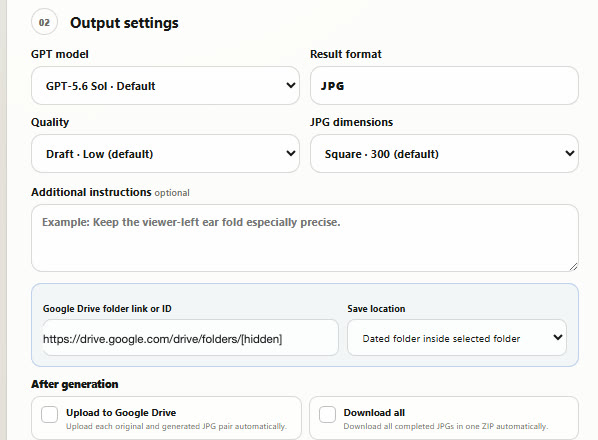
Choose the output
Settings are chosen once for the whole batch.
Quality: Draft, Balanced or Final
JPG size: from 300 px squares up to 2048 px
Additional instructions, optional, for a specific detail like an ear fold
Google Drive: pick a folder and save into a dated subfolder
After generation: upload to Drive and/or download everything as a ZIP automatically
How I built it: Choose the output
The server only accepts the models, qualities and sizes on the list. The prompt is built from a locked template, and the optional note is added after the rules, capped at 2,000 characters, so it can refine a detail but never override the locked rules.
03
Generate, all at once
One click starts every photo together as its own request, instead of waiting for them one by one. This parallel run is where the 95% cut in editing time comes from.
A progress bar counts finished and in-progress portraits
Finished cards unlock Download JPG while the rest keep drawing
Stop all cancels running jobs and keeps what is already done
How I built it: Generate, all at once
Each photo is its own OpenAI Image API request run in background mode, so the server hands back a job ID right away instead of holding the connection open. The page checks every job on a schedule spaced to stay within a request budget, and retries dropped connections with backoff. A retry only re-reads a job and never pays for a new one. Each result is checked as a real JPG and resized to the chosen size.
04
Compare side by side
Click any finished portrait to open the compare view: the original photo on the left, the generated JPG on the right.
Zoom both images together to check eyes, ears and nose at the same spot
Previous / Next steps through the whole batch without closing
How I built it: Compare side by side
A single zoom value drives both panes, so the two images always stay at the same scale. The arrow keys also move between photos.
05
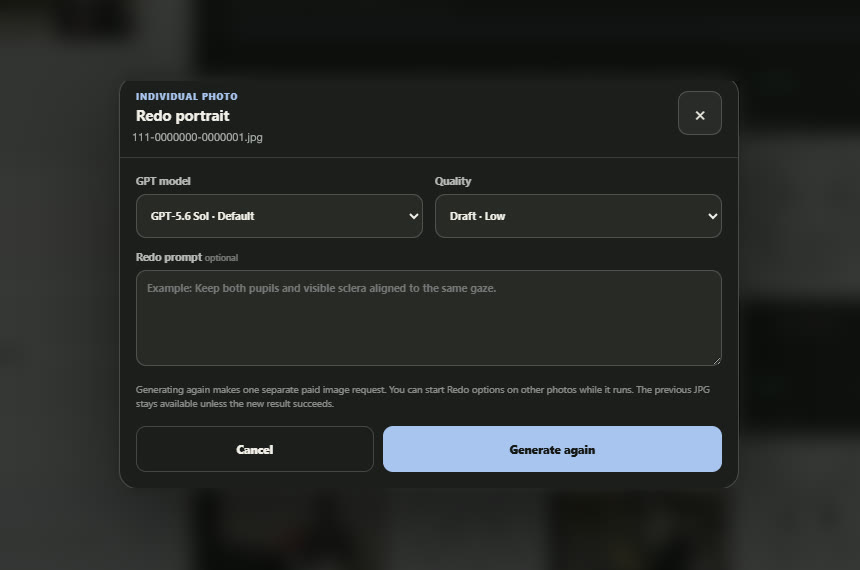
Redo just the one that is off
If one drawing misses, only that photo is sent again, with its own settings and its own note.
Change quality or add a redo prompt for that photo only
The previous JPG stays until the new one succeeds
Other photos can be redone while this one runs
How I built it: Redo just the one that is off
A redo is a separate request with its own settings. The new JPG replaces the old one only if it succeeds, and the dialog states that it is a paid request before anything is sent.
06
Save and hand off
When the batch is done, the files go where the engraving work picks them up.
Download all as one ZIP
Upload to Google Drive: each original and its generated JPG, as a pair
Restart / new batch clears the page for the next set
How I built it: Save and hand off
The ZIP is assembled in the browser by a small ZIP writer I wrote, so nothing is uploaded to make it. Drive uploads go through the Google Drive API with a Google sign-in: the app creates today's dated folder inside the chosen folder and uploads each original with its JPG as a pair.