Internal tool · Stock and ordering

Inventory Tracker

Photograph the count, the program reads it in · One screen that says what to order today · A run out date and an order by date for every item

A program I built for Mignon and Mignon, a personalized jewelry brand that engraves names, initials, birthstones and pet portraits onto necklaces, bracelets, rings and charms. The shop makes everything from the same few hundred parts: chains, clasps, jump rings, blanks and birthstones. The team counted those parts by hand and typed each count into an Excel sheet, one row per part. The sheet was kept carefully, but it could not say when a part would run out. With the tracker, counting still happens on paper in front of the shelf. The counted sheet is photographed and uploaded, the program reads the numbers in, and from each item's past use it works out how fast the item is used, when it will run out, the last day to order, and how many to buy.

Before Paper and a spreadsheet

Count the shelf, then type each number into the Excel sheet, one row at a time, a few hundred rows. The sheet is a careful record, but it cannot tell you when a part will run out.

After Inventory Tracker

Count the shelf on a sheet printed in shelf order and upload a photo of it. The first screen shows what to order today, from which supplier, and how many. The program also prepares the three big orders of the year. Nothing is typed in row by row.

The first screen, every morningThe Inventory Tracker home screen: What to order today, four cards for season, order, receive and count, status chips, and a table of four urgent rows with stock, run out date and order now quantity
"What to order today." Four urgent rows, each with the date it runs out, the quantity to order now, and a sentence saying why.

Security note: every screen on this page is the real program filled with placeholder data. The items, quantities, dates and suppliers are made up, the suppliers are named A to D, and the company's name and branding have been taken out of the captures.

Why I Built This

A stock count does not say when to order

The Excel sheet showed how many of each part were on the shelf, but not how long they would last. That depends on the season: four thousand of a part is plenty in February and not enough in November, because the shop sells several times as much at Christmas.

The count is the only number a person enters. The program works out the rest: use per day from the gap between two counts, a separate pace for Christmas, Mother's Day, January to March and the rest of the year, and a run out date projected forward from today's stock. The result is a list of what to order, most urgent first, and each row gives the date, the quantity and the reason. That list becomes the small order the shop places every month. The three big orders, in January, after Mother's Day and before Christmas, use the same calculation over a longer period: each item gets enough to last until the next big order.

1
number per item that a person supplies: the count on the shelf. The use, the run out date, the order by date and the quantity are all worked out from it
4
paces kept per item: Christmas, Mother's Day, January to March and the rest of the year, each measured from that item's own history

Type

Internal tool

Role

Developer, Experience Designer, Implementation

Built with

Python · Claude Code

The problem, and what changed

From typing every count to uploading a photo

The team counted carefully and kept a record. The slow part was entering it: several hundred parts typed in one row at a time, where a number in the wrong row stayed wrong, into a sheet that could not say when a part would be needed next. Below is the same week, before and after.

1 · The weekly routine

Before · Paper and a spreadsheet

Count, type, then work it out

The arithmetic was a person's job

  1. Walk the shelf with a pen, in whatever order you happen to go
  2. Carry the paper to a computer
  3. Find the right row in the spreadsheet for each part
  4. Type each number into its row
  5. Read the totals, which show how many are left
  6. Work out along the row what that means for the next few weeks
  7. Decide what to order, allowing for the supplier that takes six weeks

A mistyped row is hard to spot until the part runs out.

After · Inventory Tracker

Count, upload, read

The entering and the arithmetic are the program's job

  1. Count the shelf on a sheet printed in the same order as the shelf
  2. Upload the photo of the counted sheet; the program updates itself from it
  3. Read "What to order today": the item, the supplier, the quantity, the date

The program now does the data entry and the arithmetic.

2 · Question by question

What
Before · paper and spreadsheet
After · Inventory Tracker
Counting the shelf
BeforeDone by hand on paper, in no fixed order
AfterStill done by hand on paper, which is faster than counting at a screen. The sheet is printed in the same order as the shelf
Getting the numbers in
BeforeTyped into Excel one part at a time, several hundred rows; a number in the wrong row was hard to spot
AfterThe counted sheet is photographed and uploaded, and the program takes the numbers off it and saves them as a new dated count, keeping the earlier ones
How fast a part is used
BeforeOne formula, applied to every part the same way
AfterWorked out per item from the difference between two counts
Christmas
BeforeOne average for the whole year, with nothing extra for Christmas
AfterFour paces per item, each measured from that item's own history: Christmas, Mother's Day, January to March, and the rest of the year
When it runs out
BeforeNot shown on the sheet
AfterA date, projected day by day from today's stock at that item's current pace
When to order
BeforeDecided from the totals on the sheet
AfterAn order by date per item, worked back from the run out date using that supplier's own lead time
How many to buy
BeforeDecided by the person ordering
AfterA quantity on the row, sized to cover the lead time and the pace
What is safe
BeforeEvery row looked the same, urgent or not
AfterThe home screen lists only what needs ordering today
Trusting the answer
BeforeCheck the spreadsheet formula by hand
AfterEvery verdict opens into numbered steps with the arithmetic shown, in the order the program decided it
The three big orders a year
BeforeJanuary, after Mother's Day and before Christmas, each one worked out line by line from a sheet of totals that could not say how long a part would last
AfterBuilt from the same counts: a quantity per item that carries it to the next big order, with the rows that cannot wait for it listed separately
How long a delivery takes
BeforeKnown by the people who had ordered before, and allowed for by hand
AfterEstimated per supplier from the delivery log, subtracted from the run out date to give the last safe day to order, with extra weeks added across the Chinese New Year break
Deliveries arriving
BeforeAdded to the sheet by hand, as another row to find and edit
AfterReceiving is a step in the program, and an order on its way counts toward future stock
7 → 3
steps in the weekly routine: count, upload the photo, read the list. The program does the typing and the calculating
Why?
every row opens to show the calculation behind it, step by step

How It Works

From one count to a date and a quantity

The program is a desktop app that keeps a dated ledger of every count. Nothing is in the cloud: the data stays on the shop's computer, in the room where the counting happens.

Track A · What a count becomesThe ledger, and the use it implies
Input
Today's count
One number per item, colour and size, read in from a photo of the sheet that was counted in front of the shelf
Ledger
A closed period
The gap between two counts becomes a period: what was there, what came in, what was adjusted, what is there now. The difference is what was used
Pace
Use per day, per season
Each period is assigned to Christmas, Mother's Day, January to March or normal, and the periods of a season are averaged into that season's rate. A season with no history is estimated at twice the normal rate, and the screen says so
Result
A rate you can walk forward
Every date on the next track is calculated from this rate
Track B · What the shop should do about itThe planner
Run out
Step day by day
Start from today's estimated stock and walk forward one day at a time, taking that day's seasonal rate off and adding anything already on order on the day it is due. The first day at or below zero is the run out date
Order by
Work backwards
Run out date, minus the shipping days, minus a margin. The shipping days start as the supplier's stated weeks and are replaced by what that supplier has actually taken, out of the delivery log, and an order placed inside the Chinese New Year window carries the extra weeks that break adds
Urgent or not
Compare with the next regular order
The shop orders on a cycle: a small top up every month, and a big order three times a year, in January, after Mother's Day and before Christmas. An item is urgent only when it runs out before the next big order's delivery would land
Output
What to order today
A quantity covering use until the next big order arrives, plus a margin, minus what will still be on the shelf and what is already on order, rounded up
Program I builtWhat a person suppliesWhat comes out

Step by step

How a person uses it

Five screens cover the month: count, read the list, check a row, order, and put the delivery away.

  1. 01

    Count the shelf and upload a photo

    Counting is still done on paper, on a sheet printed in the same layout as the shelf. The counted sheet is then photographed and uploaded, and the program reads the numbers off it. Several hundred rows that used to be typed one at a time are now one upload.

    • The count that comes off the photo lands in the same screen, where it can be read and corrected before it is saved
    • Expected today sits beside every row, so an unusual number stands out while you are still at the shelf
    • Used fills in by itself, because it is the arithmetic between this count and the last one
    • The side panel shows the item's recent counts and what each one implied
    • Nothing is committed until you press Save count, and a saved count can be undone
    How I built it: Count the shelf
    • The printed sheet copies the shop's existing paper sheet cell for cell, so the layout is already familiar.
    • Each item's stock is printed in its Inventory column as of the moment Print is pressed.
    • Saving closes a period for every row: start quantity, received, adjusted, new count. The use is the difference.
    • "Since the last count" needed an exact rule, because a delivery can be logged on the same day as a count. An entry counts as later if its date is later, or if the date matches and it was saved in a later batch.
    • Bad rows are reported and skipped, and the rest of the count still saves.
    The count stock screen: a sheet called Findings with four rows showing last count, counted date, received, expected today and an empty new count box, and a side panel showing the selected item's recent counts
    The count screen, where the numbers land. "Expected today" is the program's own estimate, shown for comparison. This capture is from the build on the work computer, before the photo step, so it shows a count being keyed in.
  2. 02

    Read what to order today

    The home screen is a list of what to order today.

    • Season says which pace is being used and until when
    • Order counts the urgent rows and how many rows the next big order will have
    • Two rhythms sit behind the list: the small order every month, and the big order three times a year, in January, after Mother's Day and before Christmas. The screen says which big one is next and how many days away it is
    • Receive and Count say what is owed and which sheet is due next
    • The table lists only what cannot wait, each row with stock, the date it runs out, the quantity to order now, and a sentence explaining the verdict
    How I built it: What to order today
    • Urgency is measured against the shop's ordering schedule instead of a fixed reorder level.
    • The program works out when the next order would be placed, adds the shipping days it expects from that supplier, and calls a row urgent only if it runs out before that delivery would land.
    • Everything else goes on the next monthly order or waits for the big order.
    • Items stored in two places but counted as one stock are linked: a count on either updates both, and the stock is only ordered once.
    The home screen with four urgent rows, each showing supplier, stock, last count date, run out date, order now quantity and the quantity for the January order
    Four rows that cannot wait for the January order, which is the next of the year's three big ones. The quantity for each is already worked out.
  3. 03

    Check why a row is urgent

    Every verdict can be opened, and it explains itself in numbered steps with the arithmetic shown.

    • Stock now: the last count, and the estimate for today with the days and the rate used
    • Use per day, and where that rate came from
    • Runs out, with the walk forward that produced the date
    • Do we really need it now?, which is the urgent test written out
    • If you order today, with the quantity broken down into what it covers, the margin, and what is subtracted
    How I built it: Why a row is urgent
    • The planner records each step of its calculation as it runs.
    • The item page displays that record directly, so the explanation matches the calculation that was used.
    • Every line names its own numbers: which dates, how many days, which seasonal rate, what is already on order.
    • The line that gets used most is the last safe day to order: the run out date, minus the delivery time, minus the margin.
    The itemAn item page showing stock, use per day broken down by season, the next regular order, and a bar chart of use per month over two years
    One item: its stock, its pace in each season, and two years of use per month.
    The reasoningThe Why Urgent panel: eight numbered steps from stock now and use per day through runs out, on order, the next regular order, the urgency test, the quantity to order today and the quantity for the January order
    The same decision, written out in eight steps.
  4. 04

    Place the order

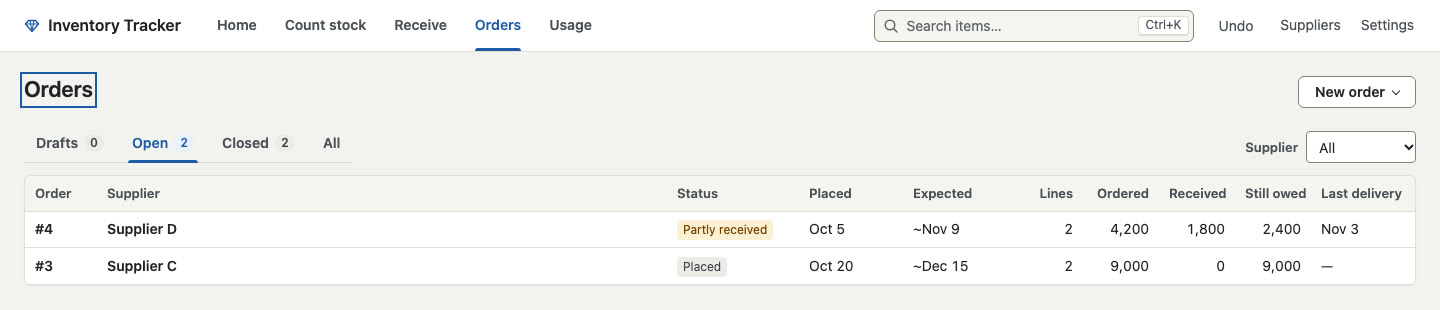
    An order is a list of lines against a supplier, and from then on the program knows it is coming.

    • Open orders show what was ordered, what has arrived and what is still owed
    • Expected is worked out from that supplier's lead time, and goes red when it is late
    • Anything already on order is included in the run out date
    • A line that is never going to arrive can be closed as not coming, with the reason kept
    How I built it: Place the order
    • Every order date depends on how long the supplier takes to deliver.
    • Each supplier starts with the weeks the shop says they take. Once there are real deliveries to compare, the learned time takes over, and the item page says which one it used.
    • A Chinese New Year flag is kept per supplier, because a factory that normally takes six weeks takes considerably longer across that shutdown.
    The orders screen with tabs for drafts, open, closed and all, listing two open orders with status, placed date, expected date, lines, ordered, received and still owed
    Two open orders. One placed and waiting, one partly received with the rest still owed.
  5. 05

    Put the box away

    Receiving is the step most likely to be skipped, so I made it the quickest.

    • Open orders are grouped by supplier, so the box in your hands matches a row on screen
    • Receive from this supplier fills in everything still owed, for a box that arrived complete
    • A short delivery is typed line by line, and what is left stays owed
    • A delivery that matches no order can still be recorded
    How I built it: Receive a delivery
    • Every change (a count, a delivery, an adjustment, a closed line) is saved as a batch, and the latest batch can be undone.
    • Undo helps most when receiving, when the person is often holding a box and typing with one hand.
    • Each delivery updates the stock and records how long that supplier took.
    The receive a delivery screen: open orders grouped under two suppliers, each with ordered date, expected date, lines owed, still owed and a receive button
    Pick the supplier the box came from, and its open lines appear.

How I built it

How each part works

A Python core that keeps a dated ledger, with a single page interface running inside the app's own window. Built with Claude Code.

How each part works6 parts
01

The ledger

Counts, deliveries and adjustments, all as one history that can be replayed.

How I built it

  • An item is one product, colour and size, and a count closes a period against it: start, received, adjusted, end, used
  • Every write is saved in a batch, so the last action can be undone in one step
  • The "since the last count" rule is the same everywhere: by date, then by batch order, so a delivery logged on counting day is placed correctly
02

Seasonal pace

The same item moves at very different speeds in November and in February.

How I built it

  • Each counting period is assigned to a season by which season most of its days fall in, then the periods of a season are averaged
  • A season with no history yet is estimated at twice the normal rate, and the program labels it as an estimate
  • Invalid periods, such as a negative use or a skipped count, are dropped or merged into the next one so they do not distort the average
03

Walking the stock forward

The same loop produces the run out date, the order quantity and the explanation.

How I built it

  • The walk steps one day at a time: anything due that day arrives first, then that day's seasonal rate is taken off
  • Stepping day by day, instead of dividing stock by an average, handles a season change or a delivery midway without special cases
  • The same loop answers "when does it run out" and "how much to order", so the two answers stay consistent
04

Explaining itself

Every verdict can be opened and read in the order the program decided it.

How I built it

  • The item page shows the record the planner wrote while calculating
  • Each step lists its dates, day counts and rates
  • The one line summary on the home screen uses the same numbers
05

The printed count sheet

Paper that matches the shelf, because counting on a screen is slower than counting on paper.

How I built it

  • The layout comes from the shop's existing sheet, cell for cell, including which columns are labels and where a section starts
  • The current stock is printed in each item's Inventory column, as of the moment Print is pressed, with the print date in the heading
  • Items the template does not place are listed after the grid instead of being left off
  • Section headings repeat at the top of a page that starts below them
06

Looking after itself

It runs on a shop computer with no IT support.

How I built it

  • Backups run on their own and can be restored from inside the program
  • It can open itself on a chosen weekday and time to prompt the count
  • New versions are picked up from a shared folder and installed in place